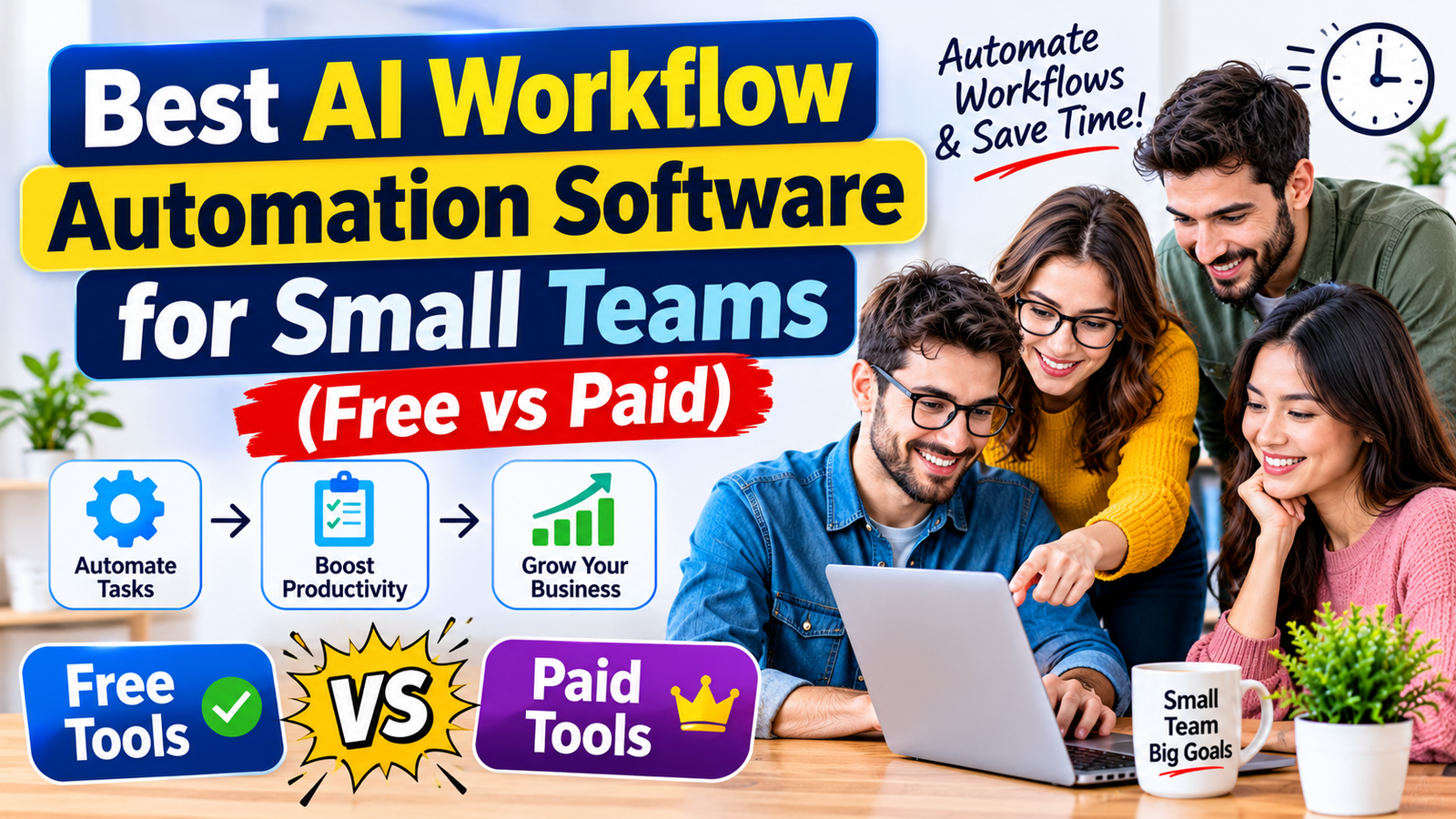
Best AI Workflow Automation Software for Small Teams (Free vs Paid)
By the Texto Invisible editorial team | Updated November 2026
Every small team has the same hidden problem: work that moves by hand. Someone copies a lead from a form into a spreadsheet, someone else forwards an invoice, and a third person reminds everybody that a task is overdue.
AI workflow automation software fixes this by connecting your apps, letting information flow on its own, and adding a layer of intelligence that can read, sort, and draft text along the way.
The real question for a small team is not whether to automate but whether a free plan is enough or a paid one is worth the money.
This guide compares both paths, explains how to choose, and helps you avoid the traps that make automation more expensive than the work it replaces.
We focus on tool categories and decision rules instead of declaring one winner with an invented score, because features, limits, and prices in this market change constantly.
By the end, you will know exactly what to test, what to ignore, and when it is smart to start paying.
What AI Workflow Automation Software Actually Does
A workflow is simply a chain of steps that happens the same way every time. Something triggers it, such as a new email, a form submission, or a paid invoice, and then a series of actions follows, such as creating a task, updating a record, or sending a message.
Traditional automation software has done this for years, but the newer generation adds AI steps that can understand language, which means a workflow can now read an incoming request, decide what it is about, summarize it, and route it to the right person.
This matters for small teams because most of their messy work is written in plain language. Customer emails, support questions, meeting notes, and documents do not fit neatly into fixed fields, so older rule-based tools struggled with them.
AI steps bridge that gap, turning unstructured text into organized information your other tools can use.
If you want a broader overview of where AI fits into a small company, our guide to the best AI tools for small business automation covers the wider picture.
Core Features to Compare Before You Choose
The first feature to check is integrations. A workflow tool is only useful if it connects to the apps your team already uses, such as your email, calendar, CRM, accounting software, and chat platform.
Before signing up, confirm that the specific apps you rely on are supported, and check whether the connection is a standard one or a premium feature that costs extra.
The second feature is how AI is built in. Some platforms offer ready-made AI steps for summarizing, classifying, and extracting data, while others let you plug in your own AI service using your own key.
Built-in steps are easier for beginners, but bringing your own AI can give you more control over cost and data handling, so think about which approach suits your team’s skills.
Then look at reliability and visibility. Good software shows a clear history of every run, explains why a step failed, and lets you retry or fix problems without rebuilding anything.
Error handling sounds boring until the day an important automation silently stops working, and a tool with good logs will save you from discovering that problem weeks later.
Finally, check permissions, because a small team still needs to control who can edit workflows and who can see connected accounts.
The Main Types of Workflow Automation Platforms
Instead of comparing dozens of brands, it helps to understand the four main families. Most teams end up using one primary platform and a few built-in automations from the apps they already own.
No-code cloud automation platforms
These hosted platforms let you build workflows visually by dragging steps into a sequence, with no coding and no servers to manage.
Well-known examples include Zapier and Make, and both support thousands of app connections and include AI-related features.
They are the easiest starting point for non-technical teams, and their free plans are good for learning.
The trade-off is that pricing usually depends on how many tasks or operations you run, so costs can grow quickly as your workflows get busier.
Open-source and self-hosted tools
Some platforms, such as n8n, can be run on your own server, which gives you more control over data and often lower costs at higher volumes.
They suit teams with a technical person who is comfortable with hosting, updates, and backups.
The savings are real, but so is the maintenance, so be honest about whether your team has the time and skills before choosing this route.
Automation built into your office suite
If your team lives inside Microsoft 365 or Google Workspace, their built-in automation and AI features may cover many needs without adding another vendor.
Microsoft offers Power Automate and Google offers tools inside its workspace apps, and both keep your data inside an ecosystem you already trust.
These options work best when most of your processes stay within one suite, and they can feel limited when you need to connect many outside tools.
Automation inside your everyday apps
Many project management tools, CRMs, chat platforms, and help desks now include their own automation rules and AI helpers.
These are free or cheap add-ons that handle simple jobs, such as assigning a task when a form arrives or tagging a customer message.
They are a great first step, but they rarely connect deeply with tools outside their own platform.
Free vs Paid: What You Really Get
Free plans are better than most people expect, but they are designed to be a starting point. Typically, they allow a limited number of workflows, a capped number of monthly runs, slower or less frequent checks for new data, and a restricted selection of advanced features.
That is more than enough to prove an idea, automate a weekly routine, or help a solo founder, but it can become a bottleneck once a workflow becomes part of daily operations.
Paid plans usually unlock higher run limits, faster triggers, more complex logic, premium app connections, team sharing, better logs, and priority support.
For a small team, the value of paying often comes less from the extra features and more from reliability and collaboration.
When several people depend on a workflow, you need shared access, clear history, and the confidence that it will not stop because you hit a monthly cap.
Hidden costs to watch for
The subscription price is rarely the full story. Many platforms charge per task or operation, which means a single workflow with ten steps can consume ten units each time it runs.
AI features may be billed separately by usage, premium connectors may require a higher plan, and each extra user can add to the bill.
There is also the cost of your own time, because a tool that takes forty hours to configure may cost more than a pricier one that takes four.
When it is worth upgrading
A practical rule is to upgrade when a free plan limit starts blocking real work, or when a failure would cost you money or customers.
If a workflow handles lead capture, invoicing, or customer support, reliability is worth paying for. If it handles a nice-to-have task such as a weekly summary, the free tier may be enough for a long time.
Which Option Fits Your Team Size
For a solo founder or a team of two or three, start with a free plan on a no-code cloud platform, or with the automation already inside your main apps.
Build one or two workflows, measure the time saved, and resist the urge to build everything at once. At this stage, simplicity matters far more than power.
For teams of five to fifteen, a low-tier paid plan on a cloud platform is usually the sweet spot. You gain collaboration, better monitoring, and higher limits for a modest monthly cost, and you can still change platforms if your needs change.
For teams of fifteen to fifty, or any team with a technical person and high workflow volume, it is worth comparing a self-hosted option against paid cloud pricing, because the cost difference can become significant at scale.
Five Workflows Worth Building First
A lead capture workflow is usually the best starting point. When someone fills out a form on your website, the automation can add them to your CRM, send a personalized confirmation, notify the right salesperson, and use an AI step to summarize what the person is asking.
The result is faster replies and fewer leads lost in an overflowing inbox.
An invoice and document workflow is another strong candidate. Incoming files can be saved to the right folder, key details can be extracted by AI, and the data can be sent to your accounting software for approval.
Before files travel between tools, it is wise to clean them, and our guide on removing hidden information from a PDF explains how to strip metadata you may not want to pass along.
Support triage is a third option, where AI reads incoming messages, classifies them by topic and urgency, drafts a suggested reply, and routes complicated cases to a human.
A content approval workflow can notify editors when a draft is ready, collect feedback in one place, and publish after sign-off. Finally, a simple weekly reporting workflow can pull numbers from several tools and send a clean summary to your team every Monday morning, which saves hours and keeps everyone aligned.
Security and Governance for Small Teams
Automation tools connect to sensitive accounts, so they deserve the same care as any other business system.
Use strong, unique passwords and multi-factor authentication on the platform itself, give each workflow only the permissions it needs, and remove connections when an employee leaves.
Review which AI services receive your data and avoid sending customer secrets, passwords, or private contracts to tools whose privacy terms you have not read.
Attackers also target the people behind these systems, so it is smart to pair automation with strong email protection, and our guide to the best anti-phishing software for small businesses shows how to do that.
For free and practical frameworks, the NIST small business cybersecurity resources and the CISA best practices library are excellent places to start.
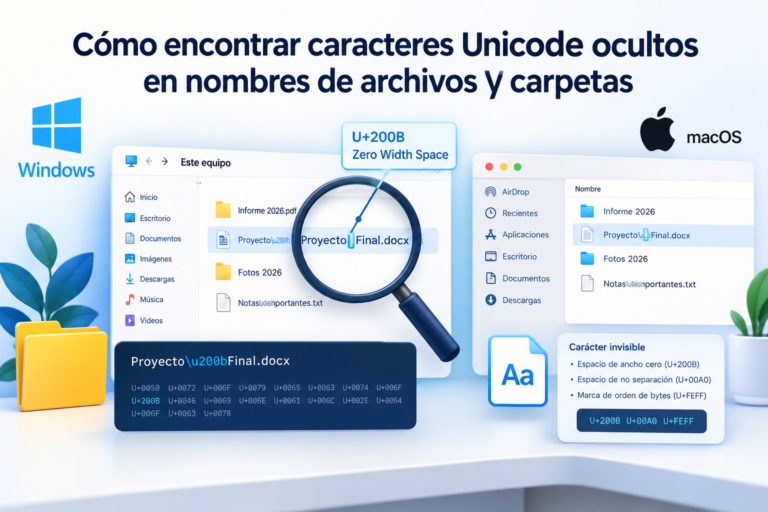
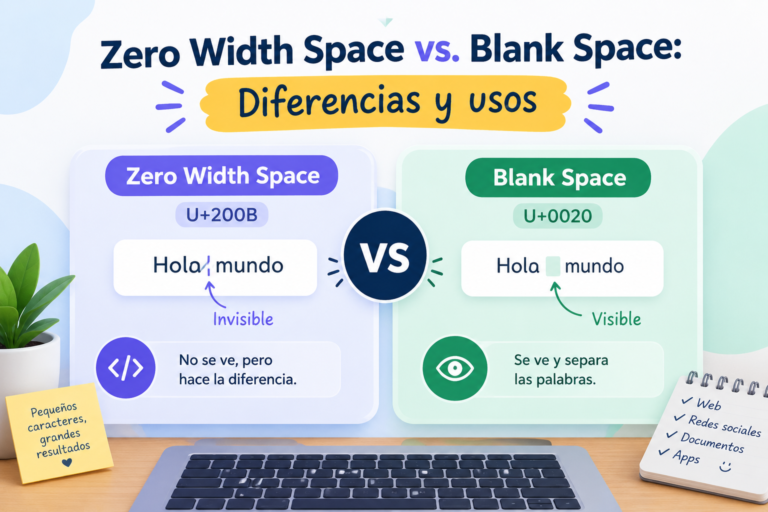
There is one more subtle problem. Text produced by AI steps sometimes contains invisible characters that can break spreadsheets, forms, or code downstream, a problem we explain in our guide to finding and removing hidden Unicode characters.
If your workflow passes AI text into other systems, add a cleaning step, and developers on your team can compare options in our review of the best hidden character detectors.
A Simple Setup Plan You Can Follow
Begin by choosing one repetitive process and writing down every step as it happens today. This map shows you what can be automated, what needs a human, and where mistakes usually appear.
Then build the smallest possible version of the workflow, test it with real examples, and watch it run for a week before trusting it fully.
Add a human approval step for anything that touches money, contracts, or customer promises, and set up alerts so that you are notified when something fails.
After a few weeks, compare the time spent before and after, and decide whether to expand, upgrade, or switch tools.
The Federal Trade Commission’s small business guidance is a helpful reference as your systems grow more connected.
Common Mistakes to Avoid
The biggest mistake is automating a broken process. If the manual version is confusing or inconsistent, automation will only make the confusion faster, so simplify the process first.
Another common error is building too many workflows too quickly, which leaves you with a tangled system that nobody understands and nobody dares to touch.
Teams also tend to forget documentation. Write a short note for each workflow explaining what it does, who owns it, and what to do if it breaks, because the person who built it will not always be available.
Lastly, avoid choosing a platform only because its free plan looks generous. Check what happens when you grow, how data can be exported, and how much the next tier really costs.
Final Thoughts
The best AI workflow automation software for small teams is the one that connects to your existing apps, is simple enough that your team will actually use it, and fits your budget as you grow.
Start free, prove the value with one or two workflows, and upgrade only when limits or reliability needs justify the cost.
Choose one repetitive process this week, map it on paper, and try automating it, and if this guide helped, share it with a colleague or tell us in the comments which platform your team uses.
Frequently Asked Questions
Is free workflow automation software good enough for a small team?
For learning, testing, and low-volume tasks, yes. Free plans usually limit runs, workflows, and advanced features, so they work best for simple routines. Once a workflow becomes critical to daily operations, a paid plan is usually worth it for reliability and collaboration.
What is the difference between regular automation and AI workflow automation?
Regular automation follows fixed rules to move data between apps. AI workflow automation adds steps that understand language, such as reading an email, summarizing a document, or classifying a request, which lets you automate messy, text-heavy tasks.
How much does AI workflow automation software cost?
Prices vary widely. Many platforms offer a free tier, and paid plans are commonly billed monthly based on users, tasks, or usage. Always check the current pricing page, and remember to include AI usage fees and the value of your own setup time.
Should a small team choose a self-hosted automation tool?
Only if someone on the team is comfortable managing servers, updates, and backups. Self-hosting can reduce costs and increase control, but it adds maintenance work that many small teams underestimate.
How do I keep automated workflows secure?
Use multi-factor authentication, grant only the permissions a workflow needs, avoid sending sensitive data to unverified AI services, add human approval for important actions, and review connected accounts regularly, especially when team members leave.